Network Department
20B Swierkowa St.
15-328 Bialystok
email: dit@uwb.edu.pl
tel. 85 745 70 95
tel. 85 745 77 77
CONFIGURATION
Student connection parameters — Windows 11
| Parameter | Value |
|---|---|
| SSID | eduroam |
| Security | WPA2/WPA3 Enterprise or WPA2-Enterprise |
| EAP method | Microsoft EAP-TTLS |
| Inner / non-EAP method | Unencrypted password (PAP) |
| Identity privacy | disabled |
| Anonymous identity | leave blank |
| Username | student_number@student.uwb.edu.pl |
| Password | current student password |
| CA certificate | do not select / do not validate |
| Server certificate validation | DISABLED |
| User certificate | none |
Troubleshooting
If eduroam does not connect:
- Remove / forget the eduroam network from the device.
- Add it again using the current instructions.
-
Make sure the username has the form
student_number@student.uwb.edu.pl. - Do not enter initials or letters before the student number.
- Make sure the EAP method is Microsoft EAP-TTLS and the inner authentication method is PAP.
- Enter your current student password.
12345@student.uwb.edu.pl
jkowalski@student.uwb.edu.pl
Student username — important
Use your student number followed by
@student.uwb.edu.pl.
The part before @ must be your student number.
12345@student.uwb.edu.pl
12345
jkowalski@student.uwb.edu.pl
j.kowalski@uwb.edu.pl
Do not use initials, an e-mail alias,
your name, or the student number without
@student.uwb.edu.pl.
If eduroam was configured previously
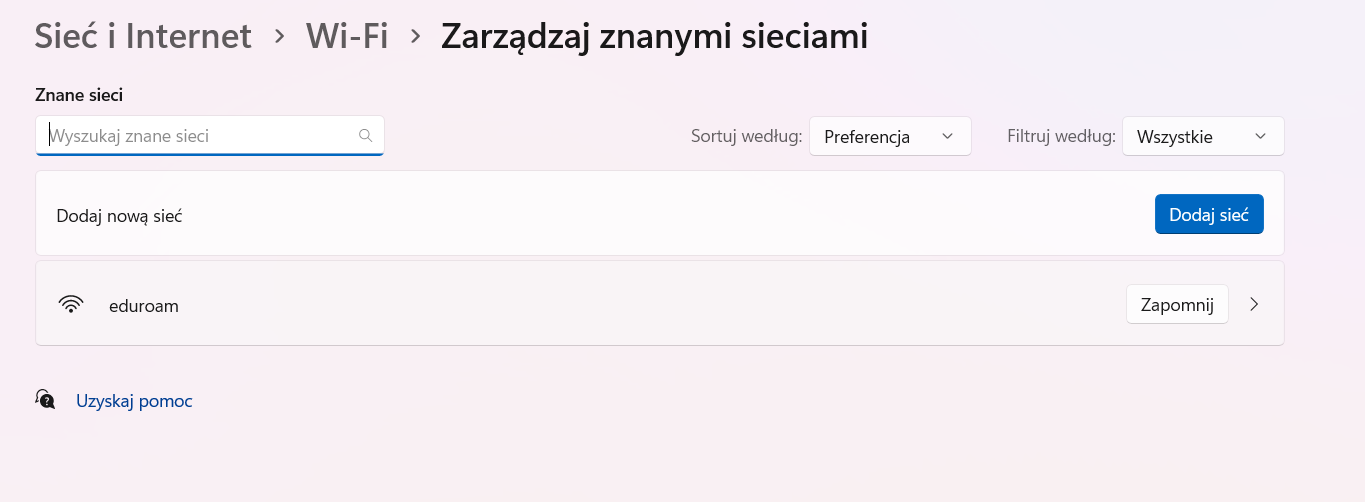
Remove the saved eduroam network profile from the Windows Wi-Fi settings and then configure the connection again using the current settings.
Windows 11 - eduroam configuration for students
This page is based on the previous Windows 11 PDF guide. It keeps the original Windows screenshots while presenting the steps in a clearer, web-friendly layout.
eduroam
WPA2-Enterprise / AES
Microsoft EAP-TTLS
PAP
student_number@student.uwb.edu.plradius.uwb.edu.pl1Open Network and Sharing Center
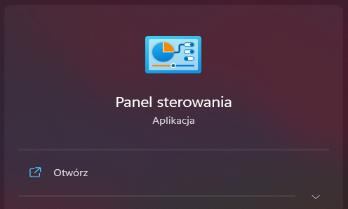
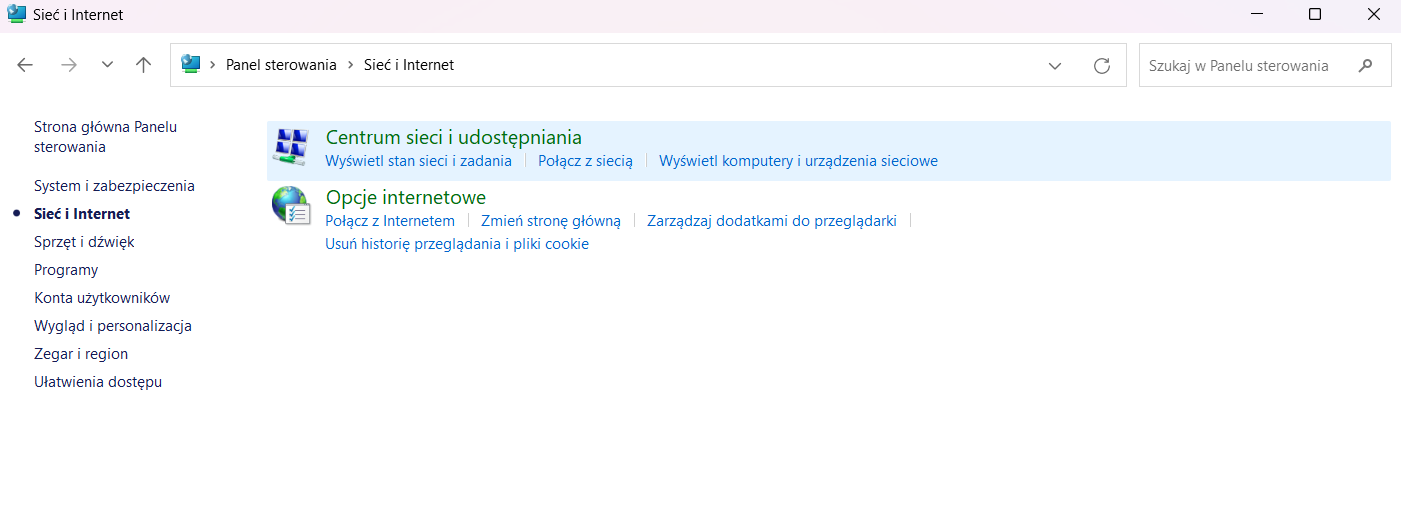
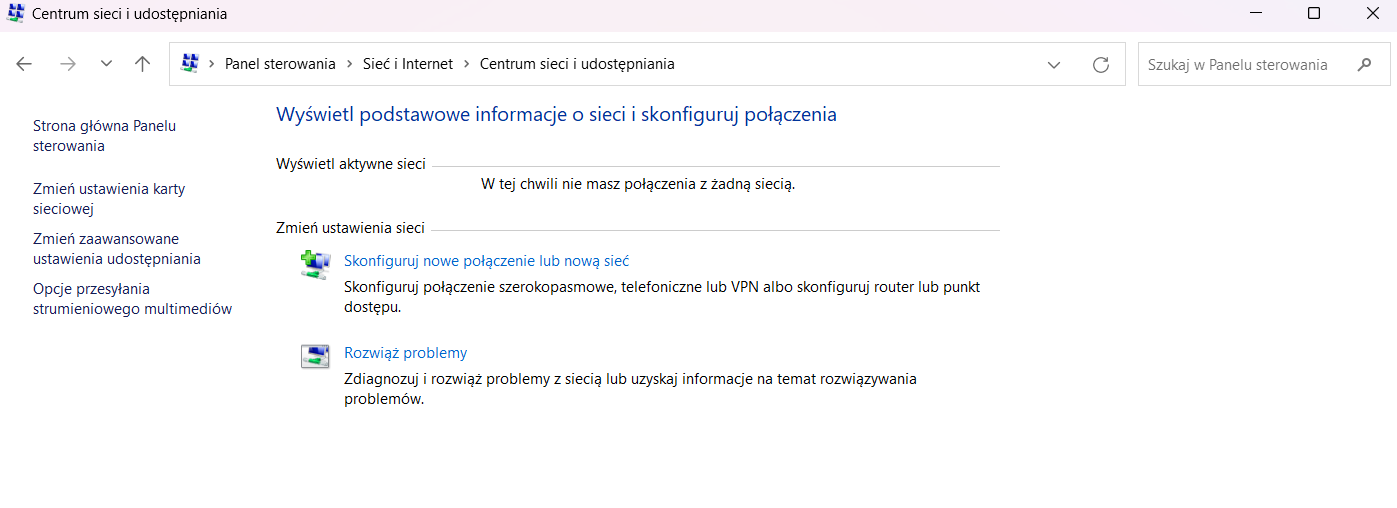
Open Control Panel, select Network and Internet, and then open Network and Sharing Center.
2Create a wireless network profile manually
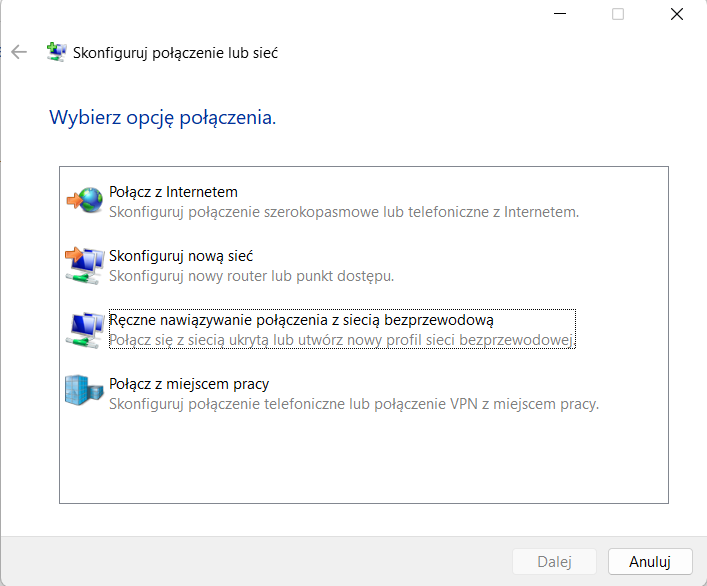
Select Set up a new connection or network, then choose Manually connect to a wireless network.
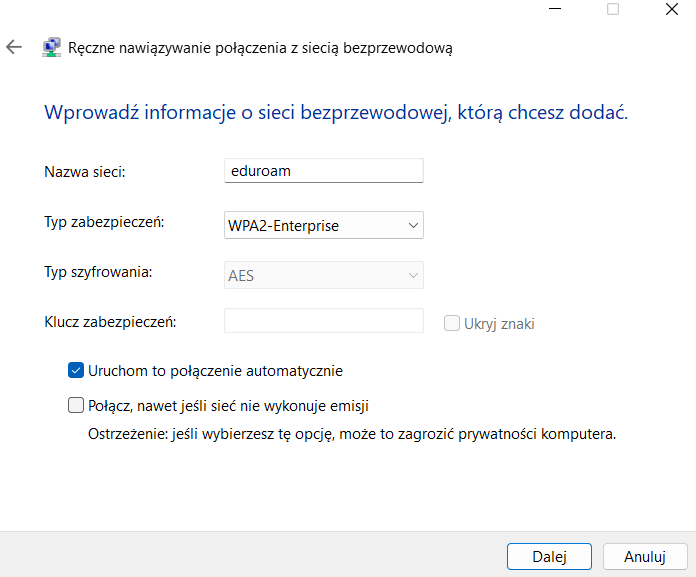
3Add the eduroam network
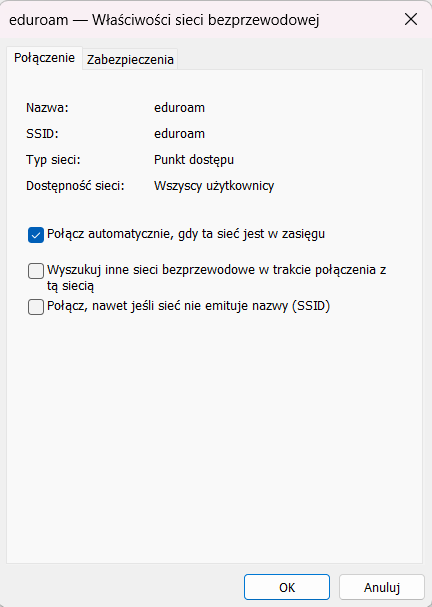
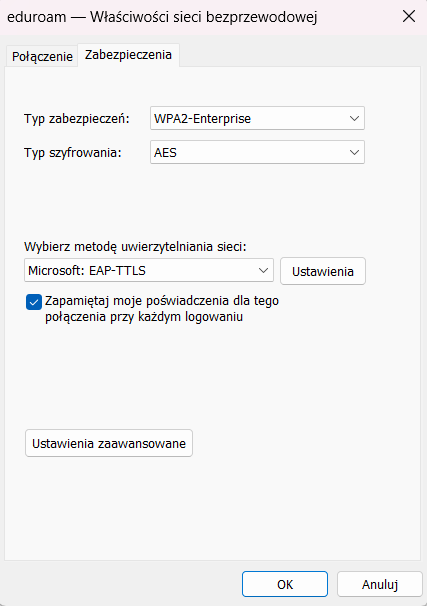
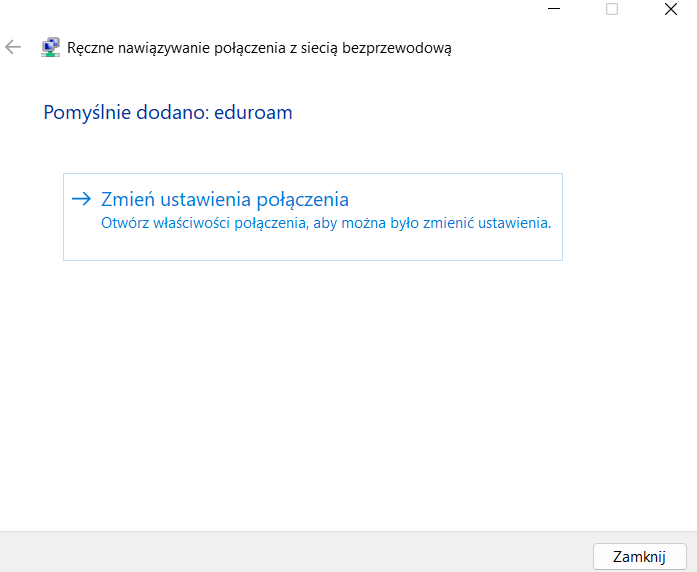
Enter eduroam as the network name. Select WPA2-Enterprise with AES encryption. Automatic connection may remain enabled. Select Next, then Change connection settings.
4Select EAP-TTLS
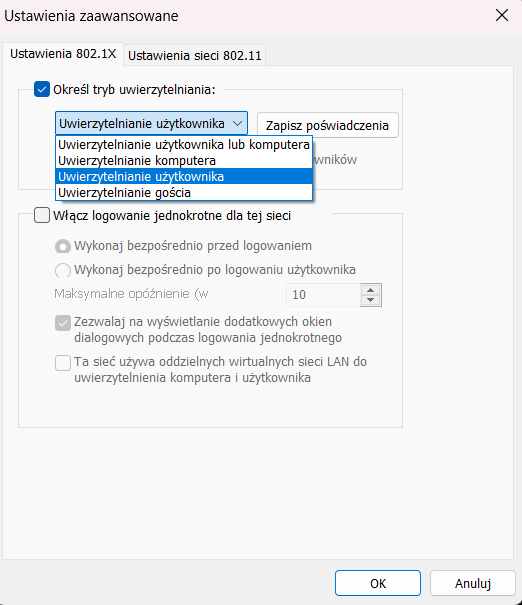
Open the Security tab in the wireless network properties. Select Microsoft: EAP-TTLS, then open Settings and Advanced settings.
5Configure user authentication and PAP
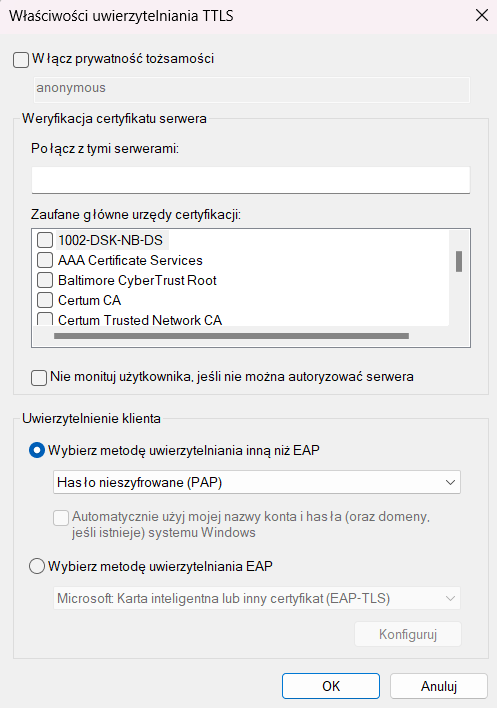
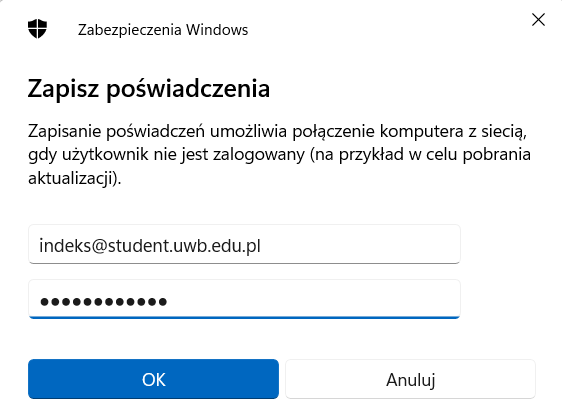
In Advanced settings, select User authentication. In the EAP-TTLS settings, following the source guide, disable identity privacy and select Unencrypted password (PAP) as the non-EAP inner method. Select Save credentials and enter your complete student username and current password.
6Connect to eduroam
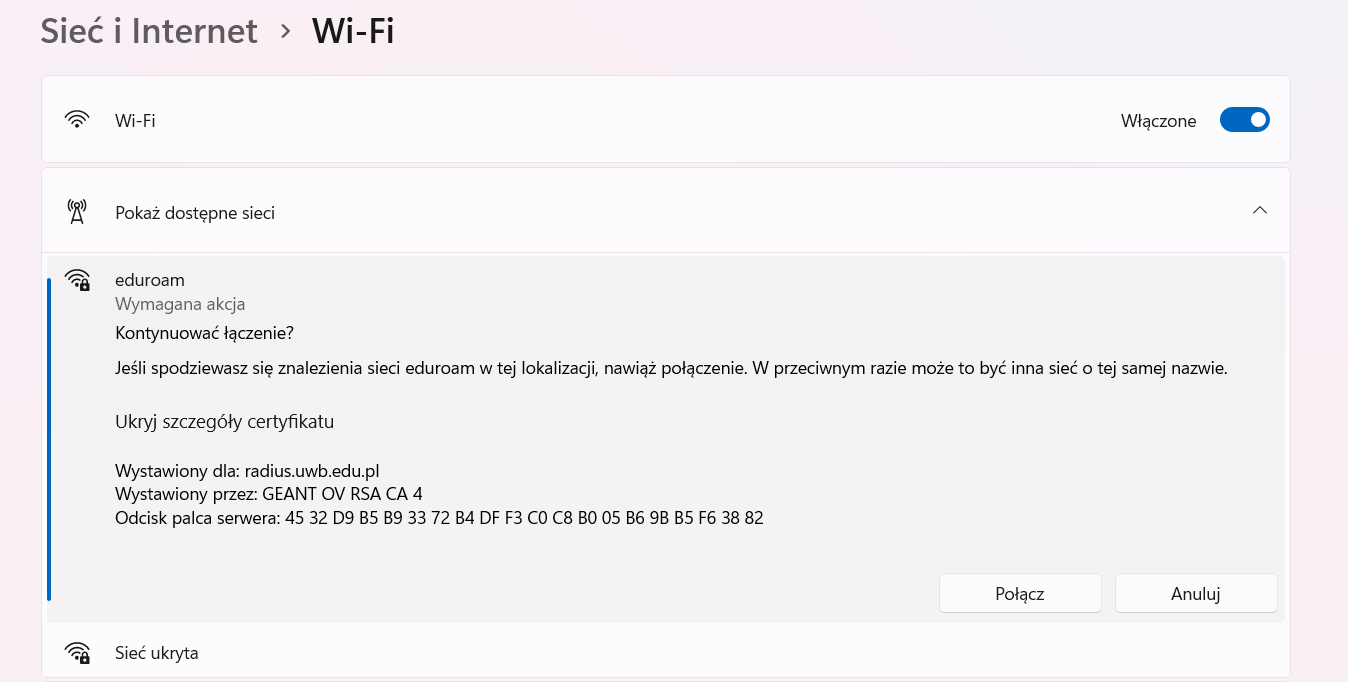
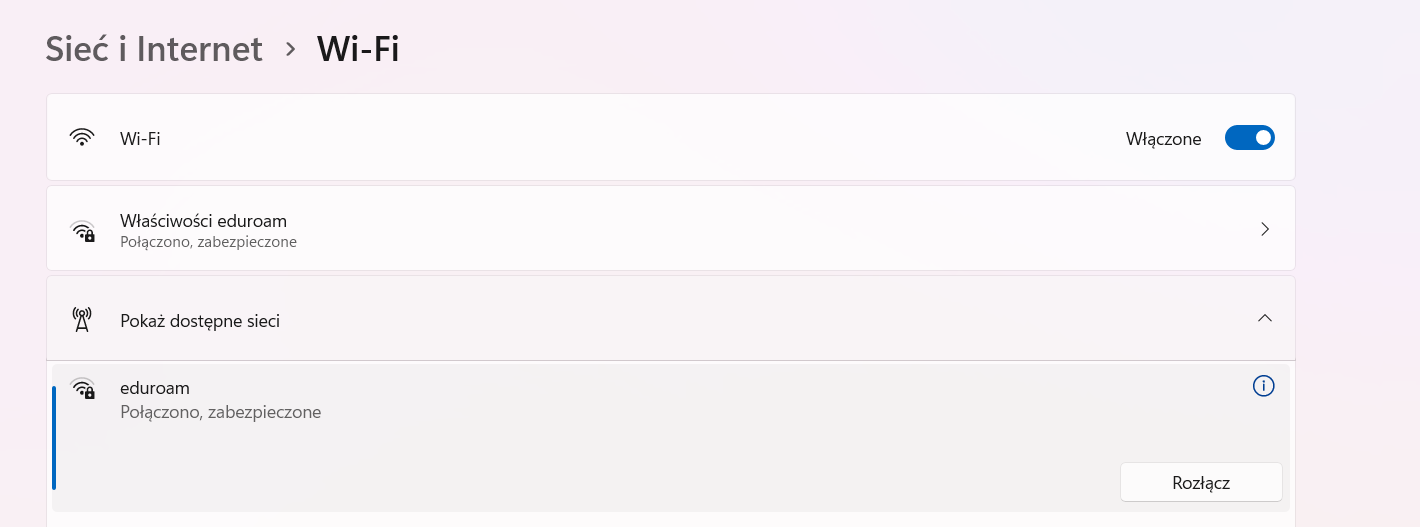
Select eduroam from the available Wi-Fi networks and connect. After a successful connection, Windows should remember the profile and reconnect automatically.
7If eduroam was configured before
If the connection does not work, remove the saved profile under Settings - Network & Internet - Wi-Fi - Manage known networks - eduroam - Forget, then configure it again from the beginning.